Hi there, I’m Shane with Reliance.
While many of our customers typically book in-home installation with an expert technician like me,
we realize that that’s not always possible. So, I’m here to take you step by step,
through the setup and basic operation of your Rheem EcoNet CET700 Smart Thermostat.
But remember, if by the end of this video you still have questions,
just give us a call and we’ll be happy to help you book an appointment.
Alright, how about we jump right in, we’ll get you familiarized with your equipment
and then we can begin with the setup?
The Rheem EcoNet CET700 Smart Thermostat features technology that’s incredibly easy to use,
including a touchscreen that lets you easily see and understand the current
status of your HVAC system, and responds to movement or the touch of your finger.
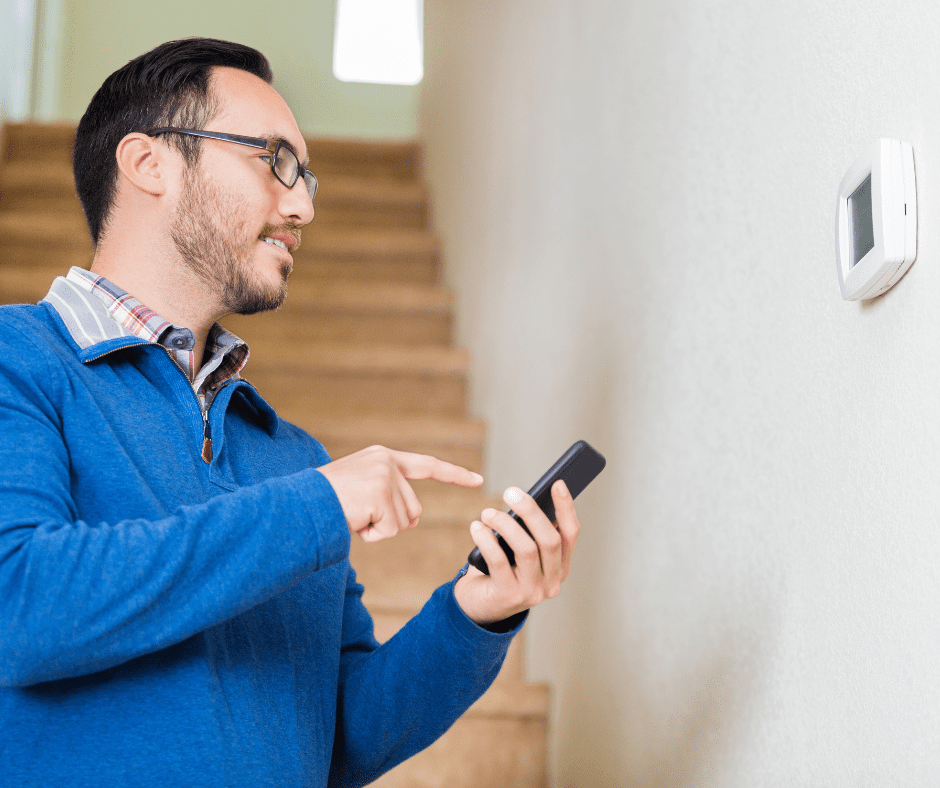
Your new EcoNet Thermostat is also Wi-Fi–enabled, allowing you to do things like access local
weather reports in real time and control the thermostat from your phone while you’re away.
You don’t necessarily need Wi-Fi to operate your new thermostat,
but we do recommend that that you connect to it,
in order to take full advantage of the EcoNet’s powerful and diverse features and functionality.
First, let’s connect your internet to your thermostat. Press the Wi-Fi icon on the
top-right of the screen. This will take you to the Wi-Fi Setup screen, where you
will need to enter your specific Wi-Fi details to get the device online. On the other hand,
if you’d rather not get the Wi-Fi connection going right now, simply press the Setup Later button.
Now, let’s get you familiarized with the rest of the Main Screen: The large number displayed in the
middle is the current indoor temperature in your home, while the smaller number underneath is the
desired temperature. This is what we call the “set point.” If you want to make it warmer or cooler in
your home, simply press the “plus” or “minus” signs, but, you already knew that, of course.)
Ok, the next button here is the Home button. With it, you can easily toggle between “Home”
and “Away.” This is important to know, because it could help you to lower your energy consumption
from the reduced temperature settings you might choose for times when you’re out.
Next, we have the Get Started button: press it,
and you’ll see a message that asks you to download the EcoNet app and create an account.
The app will give you the freedom to control your thermostat on the go.
Once you’ve installed the app on your phone, or other smart device, and created an account,
follow the prompts on the EcoNet thermostat to complete the connection between your phone
and your new thermostat.
When is all done, press the House icon at the top-left
of the screen to go back to the Main Screen.
From here, press the Menu icon on the bottom-left and you’ll be provided with four access options:
Settings, Schedule, Status and Service. Let’s go through these one by one.
Press the Settings option and it will take you to a menu with six choices:
The first choice, Basic, offers an array of useful functions:
You can adjust whether or not to Follow a Schedule you may have set and whether
or not Alarm Beep Enable is active. This menu also allows you to lock the
screen to prevent other people in your household from adjusting the thermostat.
And you can toggle the temperature display between Fahrenheit and Celsius as well.
The Schedule Override Time is for you to choose the amount of time
that any manual adjustment you’ve made to the temperature settings will remain in effect.
The Auto-Changeover Time option shows you the amount of time that the demand must exist in
the opposite mode (either cooling or heating) in order for the system to switch to that mode.
This setting is configurable between 5 and 60 minutes, and the default is 5 minutes.
Pressing MORE at the bottom-right side of the Basic Settings screen, takes you to a
new range of technical adjustments, including Set Point Deadband, Temperature Offset and others.
Technical parameters that are likely beyond what you as a homeowner would want or need to adjust,
but it’s just good to know where they are. Now, if you press the MORE button at the
bottom-right-hand corner once again, you’re able to access the Backlight Enabled control.
You can also access the Outside Temp Selection parameter, which tells your thermostat
where to get outdoor temperature information from; it could be from
a remote temperature sensor you’ve placed outside your home or from the internet.
To go back, simply press the BACK button until you arrive at the Settings menu.
Now, let’s jump to the TIME option, which is basically where you adjust
your thermostat’s time and date settings. It’s all quite simple and straightforward.
Ok, go back by pressing the BACK button again and choose the next option,
Humidity, to adjust your home’s humidity levels. Note that not all systems come
with humidification equipment. If yours doesn’t, you can simply ignore this step.
Press the HUMIDIFICATION button on the bottom right-hand side of the screen
to adjust and configure any humidification equipment that may be part of your system.
To get back to the Settings menu, press the BACK button twice, then press the fourth button, AWAY,
to set the upper temperature limit for air conditioning and the lower
temperature limit for heating for times when you’re at home and away. This is also where
you can control the fan operation. Press either the temperature or fan
settings to highlight the option you want to adjust, then use the “up” and “down” arrows
to make the temperature hotter or cooler. When you are done, press the BACK button to
save your preferred temperatures and return to the Settings menu.
The fifth choice in the Settings menu, is Vacation, which allows
you to choose upper and lower temperature settings and fan operation for times when
you’ll be away for an extended period of time. Use the Yes/No Vacation slider on the bottom-left
to activate or deactivate Vacation mode. To schedule your vacation, select the time, month,
day and year and then use the up and down arrows to set desired start and end dates.
But, note that when Vacation mode is activated, it overrides all other temperature and fan speed
settings until your pre-set vacation period is over. We recommend setting the fan speed to auto.
When ready, press BACK out of Vacation mode and select the sixth icon, Fan,
to adjust your system’s fan speed and operations. Here, you’ll see “Auto,” which means the fan
only comes on when your heating or cooling equipment is active.
All other settings keep the fan running continuously at the various speeds listed.
Remember, it’s important not to set your temperature too high or low while on vacation.
Press the BACK button twice to get back to the main screen, then choose Schedule—a feature
that allows you to select up to four different temperature settings for each day of the week.
To make an adjustment, press and highlight any of the parameters for time, fan speed,
heating setpoint and cooling setpoint, then use the “up” and “down” arrows to make changes.
Press the BACK button to save the settings and then, let’s go back to the Menu screen.
Here, when you press the Status icon, you’ll see several temperature and humidity readings
as well as the status of your EcoNet thermostat and heating/cooling equipment.
Meant only to provide you with information so there’s nothing to adjust on this screen.
Now, BACK out and press the Service icon to access the Current service requirements for your system,
the service History, service Alerts, and contact information if you need Support for your system.
Here is a tip, when you press the Equip icon,
you can get information on the make and model of your heating and air conditioning equipment,
which are useful details to share with your Reliance consultant when booking a service call.
Hit the BACK button twice to go back to the Main Screen.
Ok, so with that, you’ve completed the setup of your new EcoNet Thermostat—one of the most
full-featured and popular models around.
And, don’t forget: If you still have any trouble with setting up or using your EcoNet Thermostat,
just Call on Reliance.